How to Connect Taxi Fleet Manager and Driver Desk
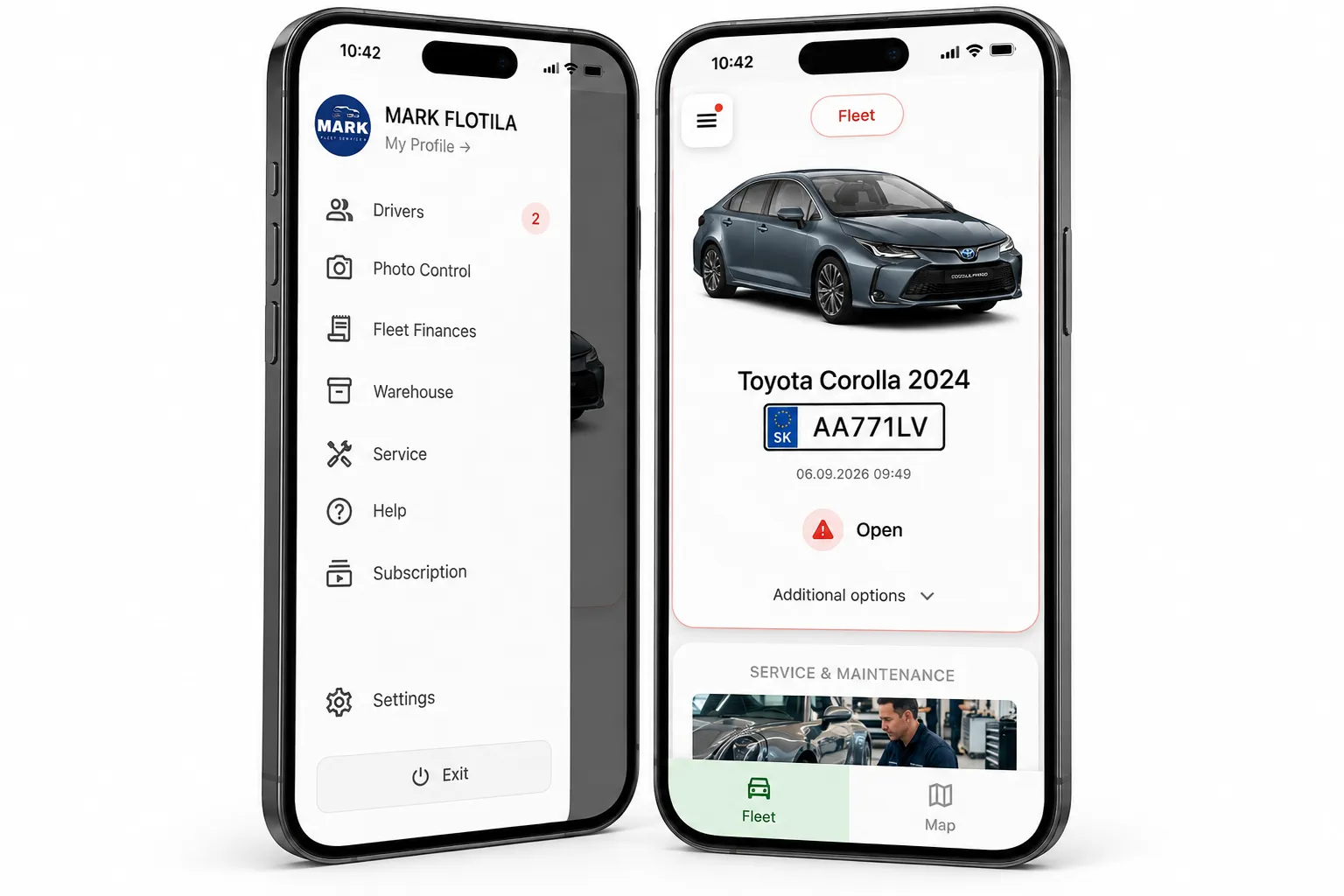
Taxi Fleet Manager is an app for fleet owners and managers who rent vehicles to drivers for taxi work.
It is suitable for both small fleets with a few cars and larger fleets where you need to manage many vehicles and drivers simultaneously.
Instead of separate spreadsheets, chats, and documents, core processes can be managed in one system: adding vehicles and drivers, assigning cars, setting rental conditions, working with contracts, controlling payments, expenses, mileage, maintenance, and vehicle condition.
Taxi Fleet Manager
Fleet control center for the owner or manager. Vehicles, drivers, rentals, and financial operations are gathered in a single system.
- Management of vehicles and drivers
- Setting up rentals and terms of use
- Control of finances, payments, and mileage
Taxi Driver Desk
Personal driver dashboard for working with the fleet. The driver sees their vehicle data, rental conditions, and all accruals and payments - transparently and in one place.
- Vehicle data and information
- Rental conditions and current obligations
- Transparent mutual settlements with the fleet
Two apps - one system. The owner manages the fleet through Taxi Fleet Manager , and the driver gets all the necessary information through Taxi Driver Desk . Data between the apps is synchronized automatically.
How to connect a driver to the fleet
Create a fleet
Add vehicles and configure the main fleet data.
Invite a driver
Send the driver a personal connection code.
Assign a vehicle
Assign the vehicle to the driver and set the rental conditions.
Create a fleet and add a vehicle
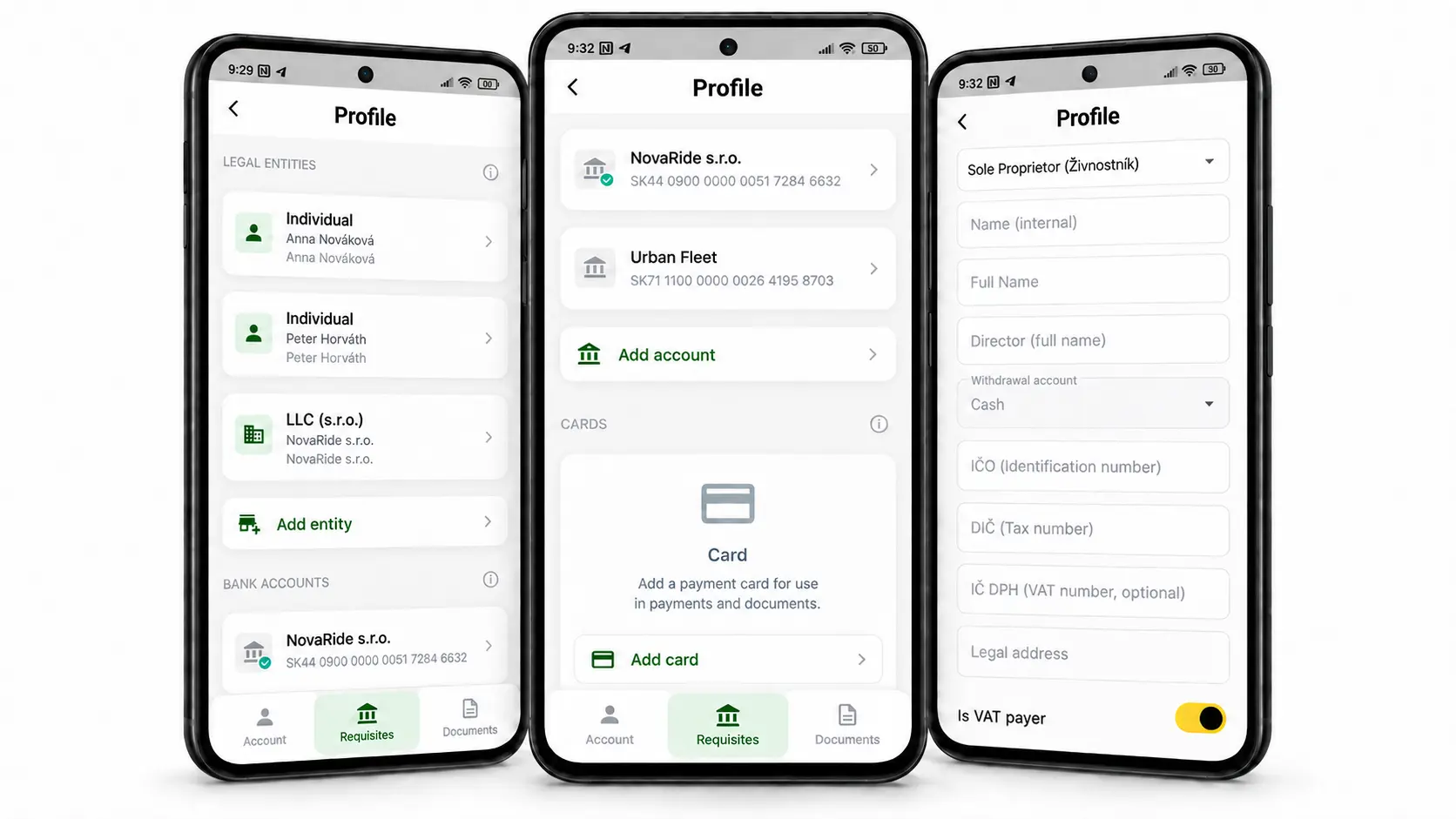
After registering in Taxi Fleet Manager , create your fleet profile and fill in the basic details.
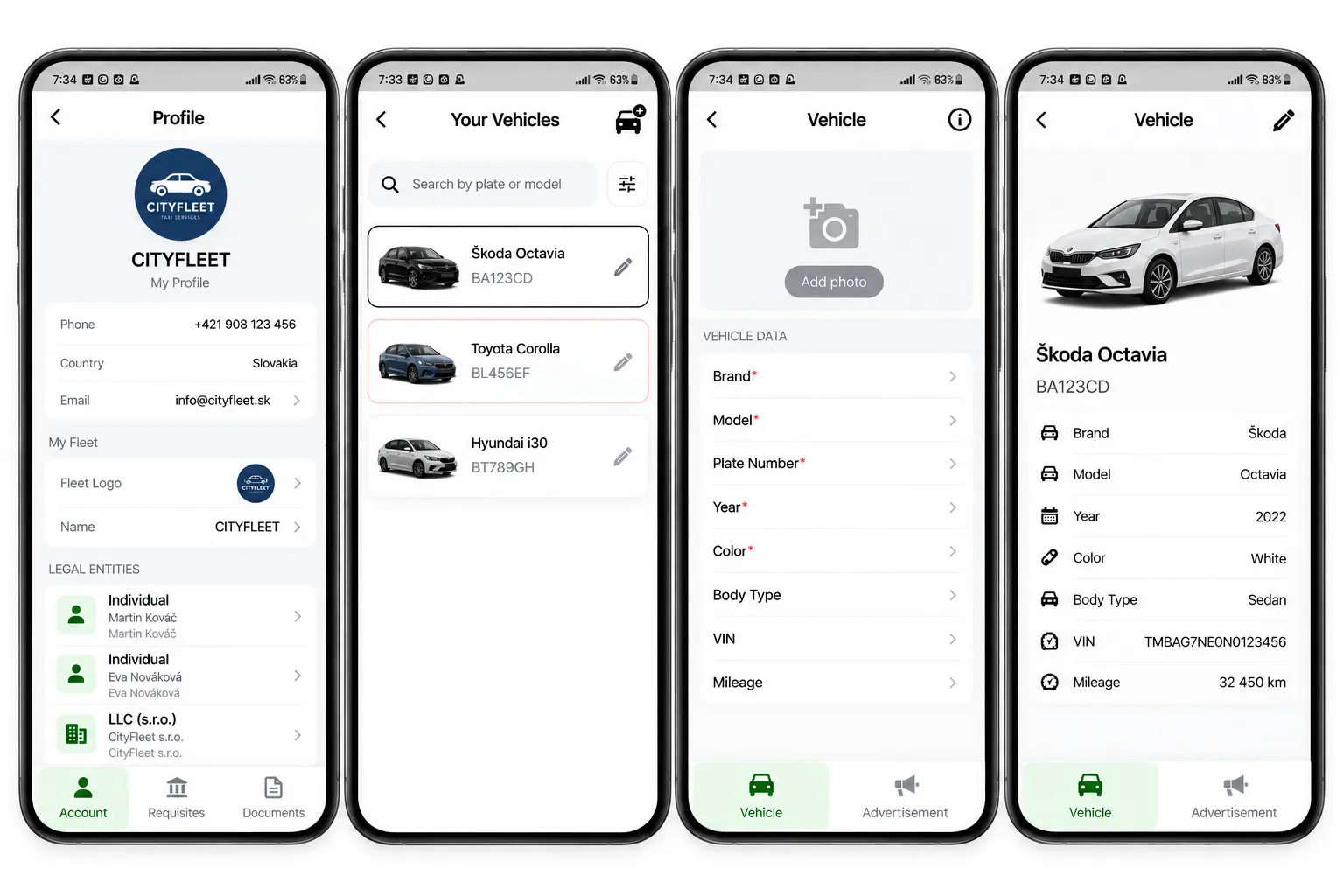
Then add your first vehicle. Specify the license plate, make, model, year, mileage, and other necessary information.
After saving, the vehicle will appear in your fleet and will be ready to be assigned to a driver.
Invite a driver
When the fleet is ready, you can start connecting drivers.
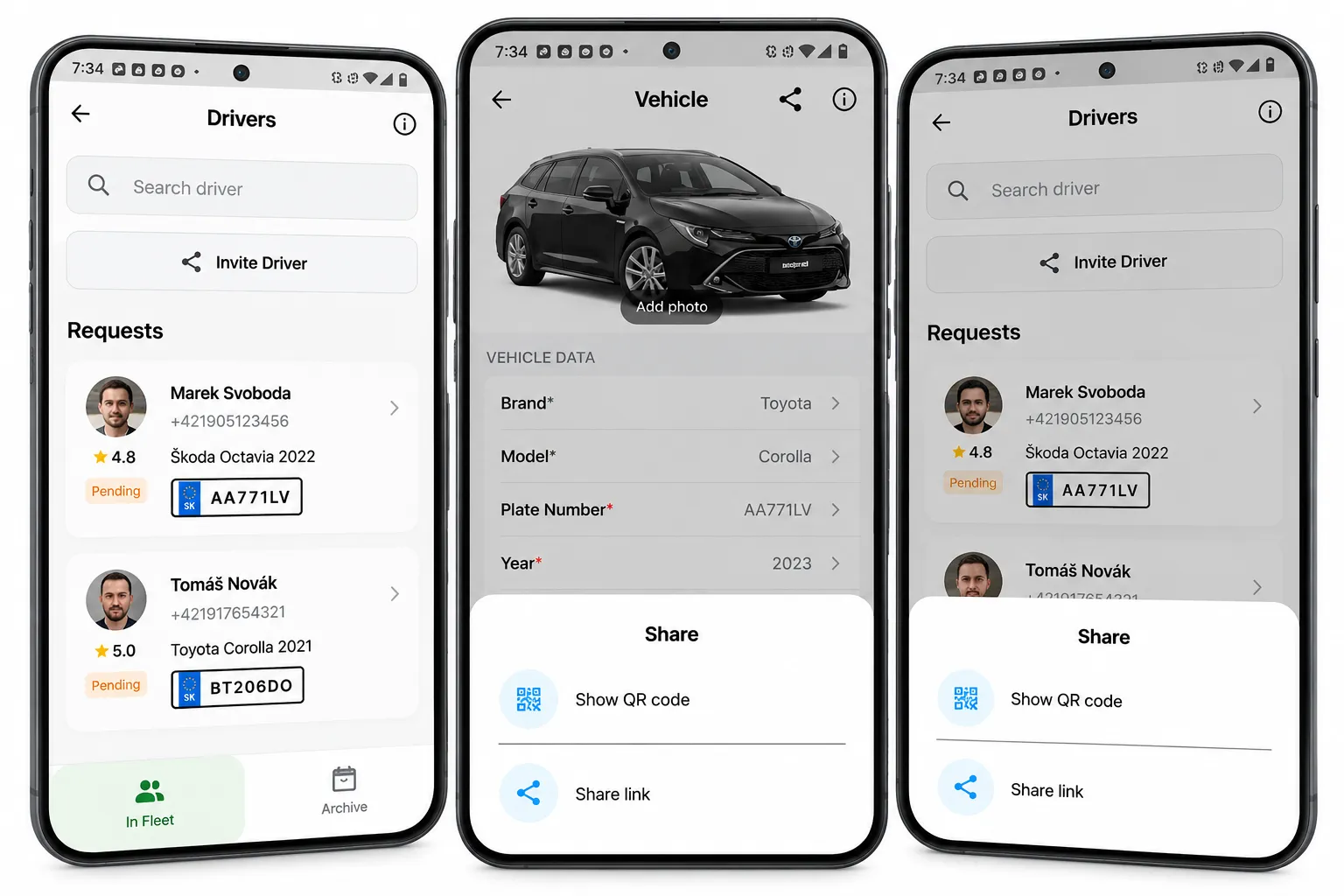
Your fleet has its own invitation. You can send it to the driver as a link or show a QR code. You can find them in the drivers section or in the fleet settings.
The driver just needs to install Driver Desk and join your fleet.
Driver connects to the fleet
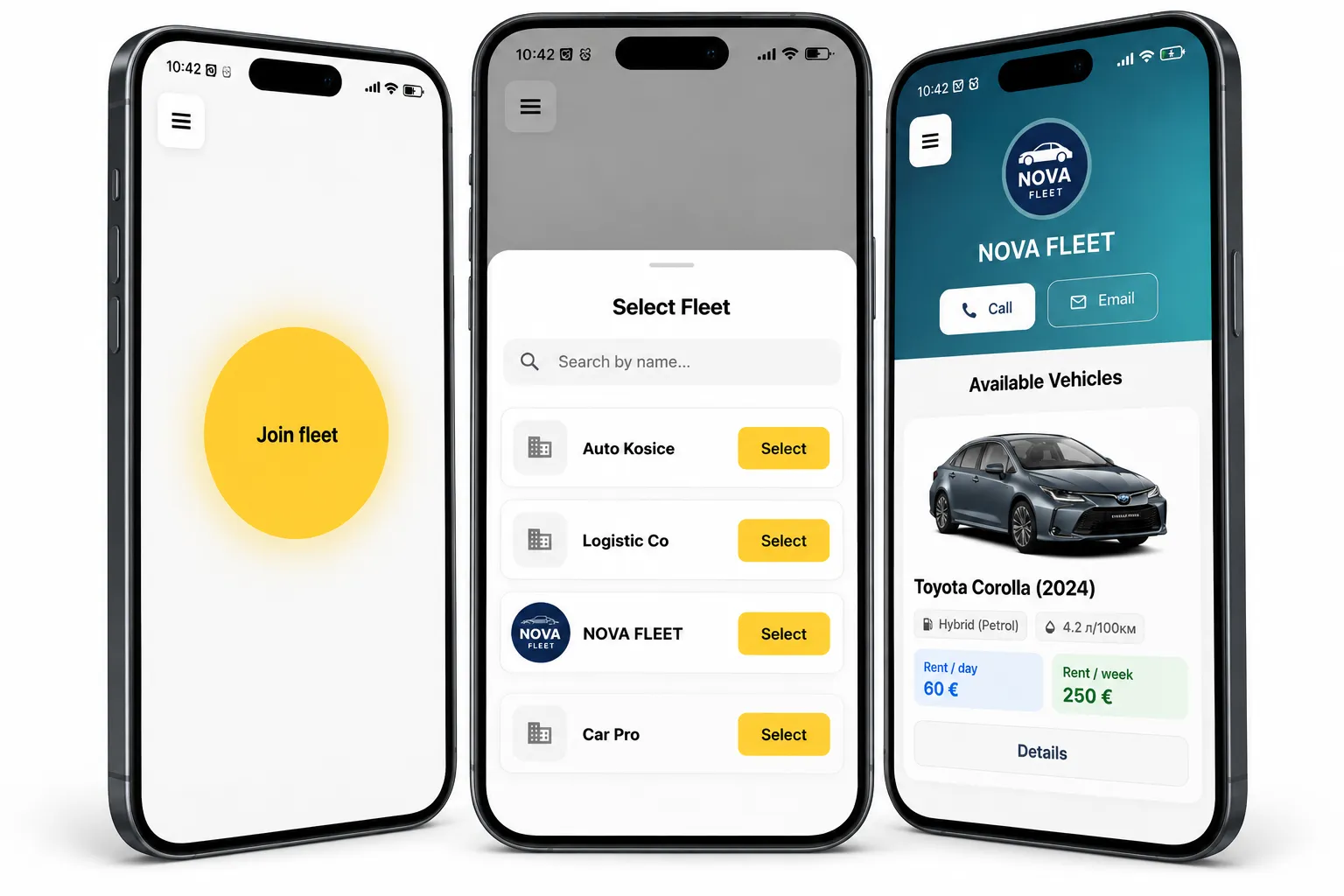
The driver can join in several ways: by opening the invitation link, scanning a QR code, or finding your fleet in the list of available partners.
Once connected, the driver appears in Taxi Fleet Manager .
If the driver used an invitation link for a specific car, they will automatically join your fleet, and you will immediately receive a request for that vehicle. If the invitation was to the fleet itself, the process is the same, but the driver will have access to the entire list of available cars.
Assign a vehicle and set up rental
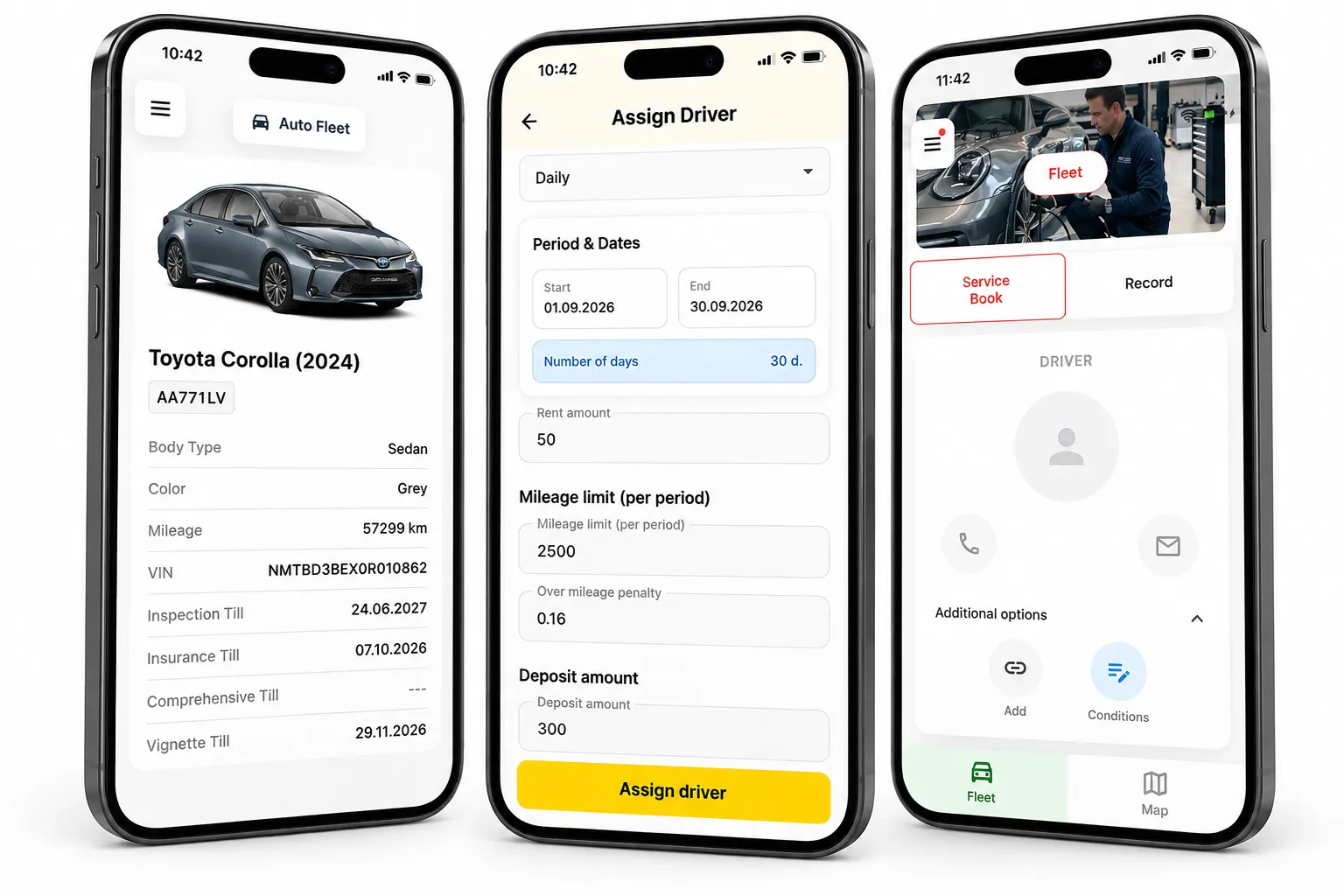
Now you can select a vehicle and assign it to the driver.
When issuing a car, you can specify rental conditions: cost, payment period, mileage limit, and other parameters. If needed, you can use a rental agreement template and process the vehicle handover through the app.
After this, the driver and the vehicle are linked together in the system.
What happens next
After issuing the vehicle, Taxi Fleet Manager helps you manage ongoing work with the driver and the car: control rentals and payments, track expenses and mileage, and monitor maintenance and vehicle condition.
For example, you can send the driver a photo control request. In Driver Desk , the driver will see the task, take the necessary photos of the car and odometer, and the result will appear in Taxi Fleet Manager for review.