How to accept cashless payments from passengers with Driver Desk
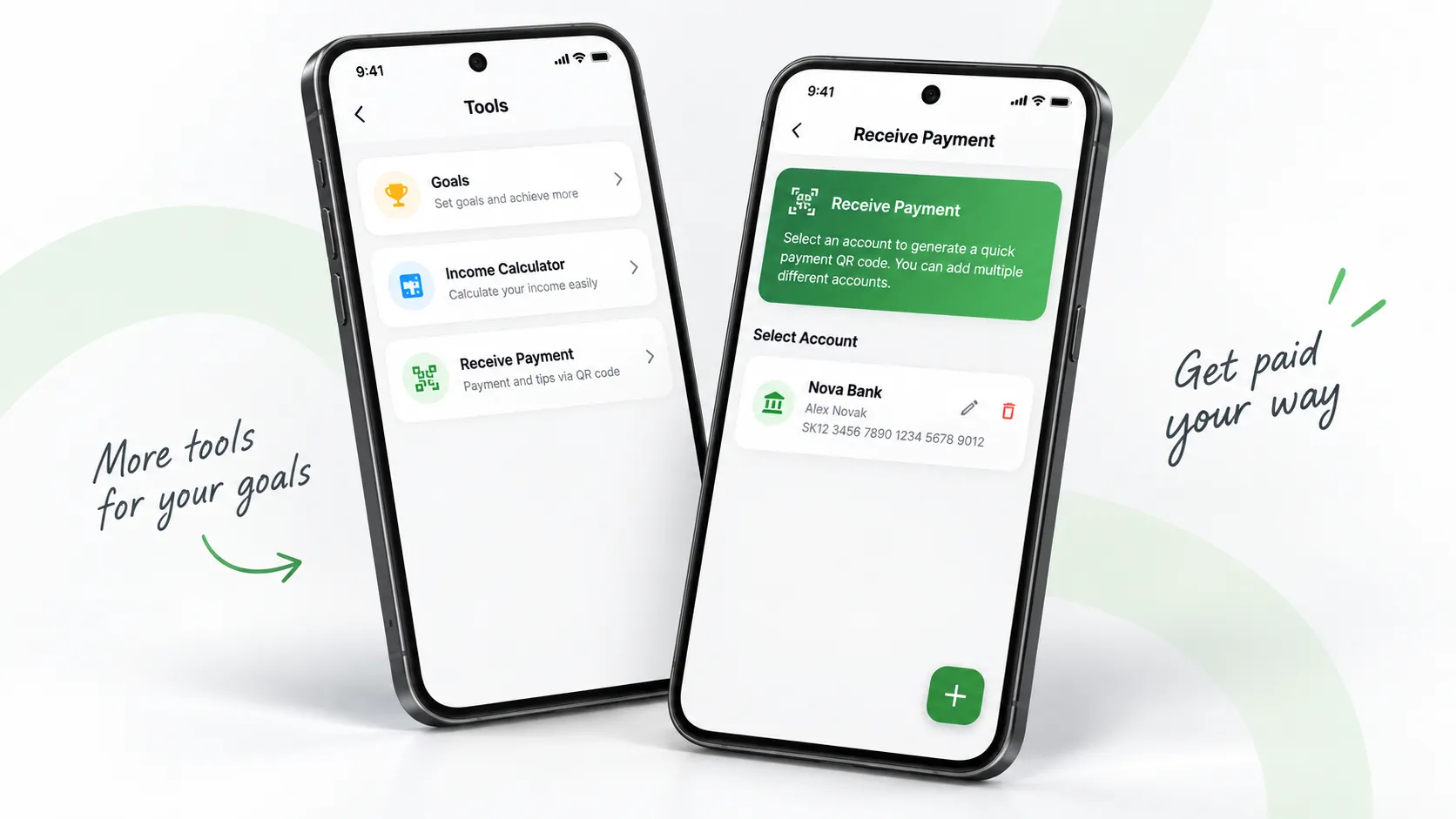
Does a passenger want to pay for a ride with a bank transfer, but the driver doesn't have a payment terminal? Usually, you have to open your banking app, look for the account or card number, dictate the details to the passenger, and state the amount separately.
Driver Desk simplifies this process with the "Accept Payments" feature.
The driver saves their payment details once and can then use them during rides: show the passenger a QR code for payment, open the details directly on the screen, or quickly copy the card or account number and send it via message.
The money is transferred directly to the driver's bank account — Driver Desk helps to quickly provide the passenger with the necessary data for payment.
Save payment details once
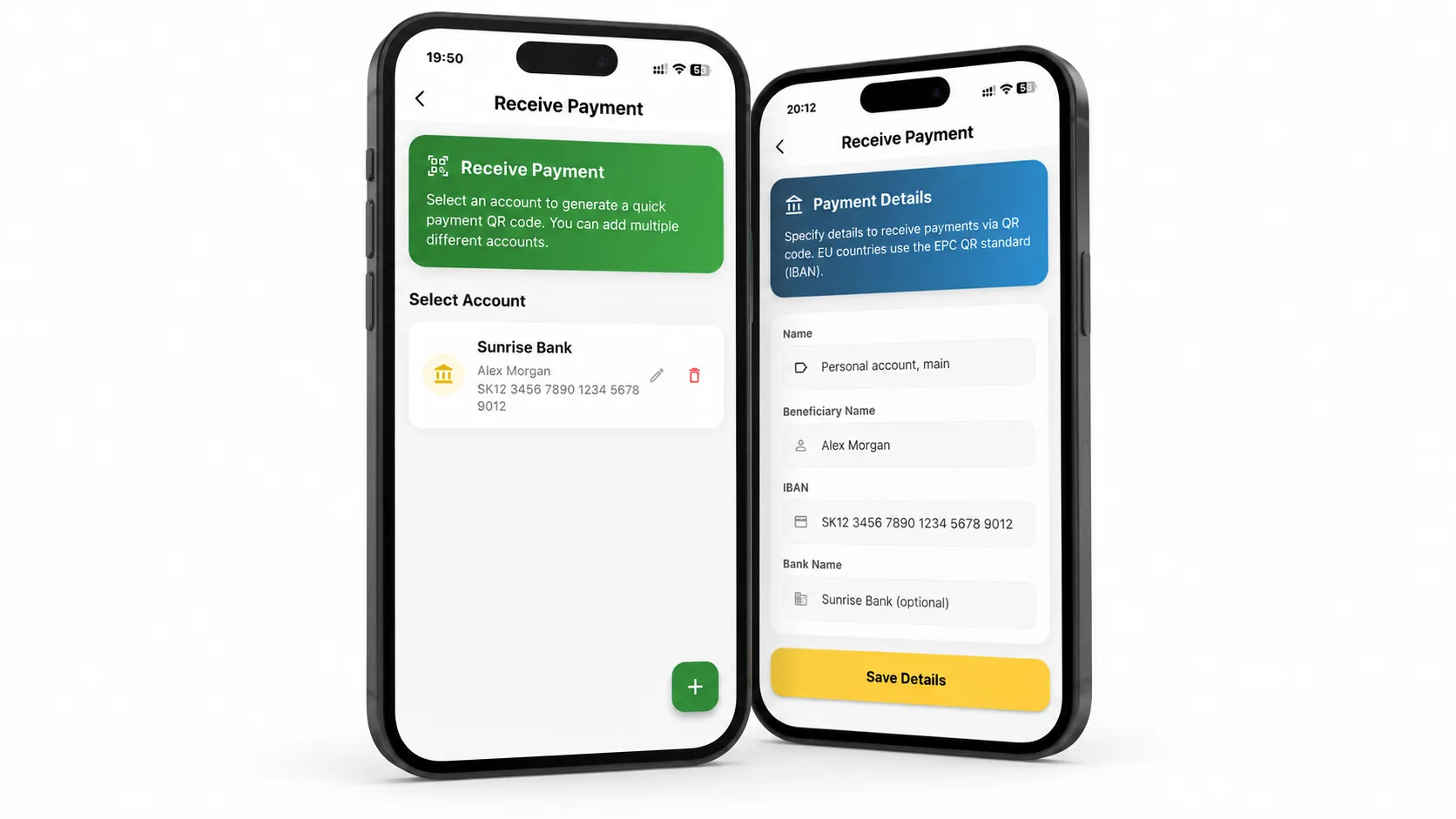
Before using the feature for the first time, you need to create a payment profile in Driver Desk.
The driver specifies the data that will be used to receive transfers: the recipient's name, bank details, and, if necessary, the name of the bank.
You can create multiple payment profiles. This is convenient if the driver uses different accounts or wants to select the appropriate details depending on the situation.
Payment profiles are saved in the driver's account and synchronized with the server, so there is no longer a need to search for bank details before each ride.
Three ways to share payment data with a passenger
After setup, the driver can choose the most convenient way to receive a transfer.
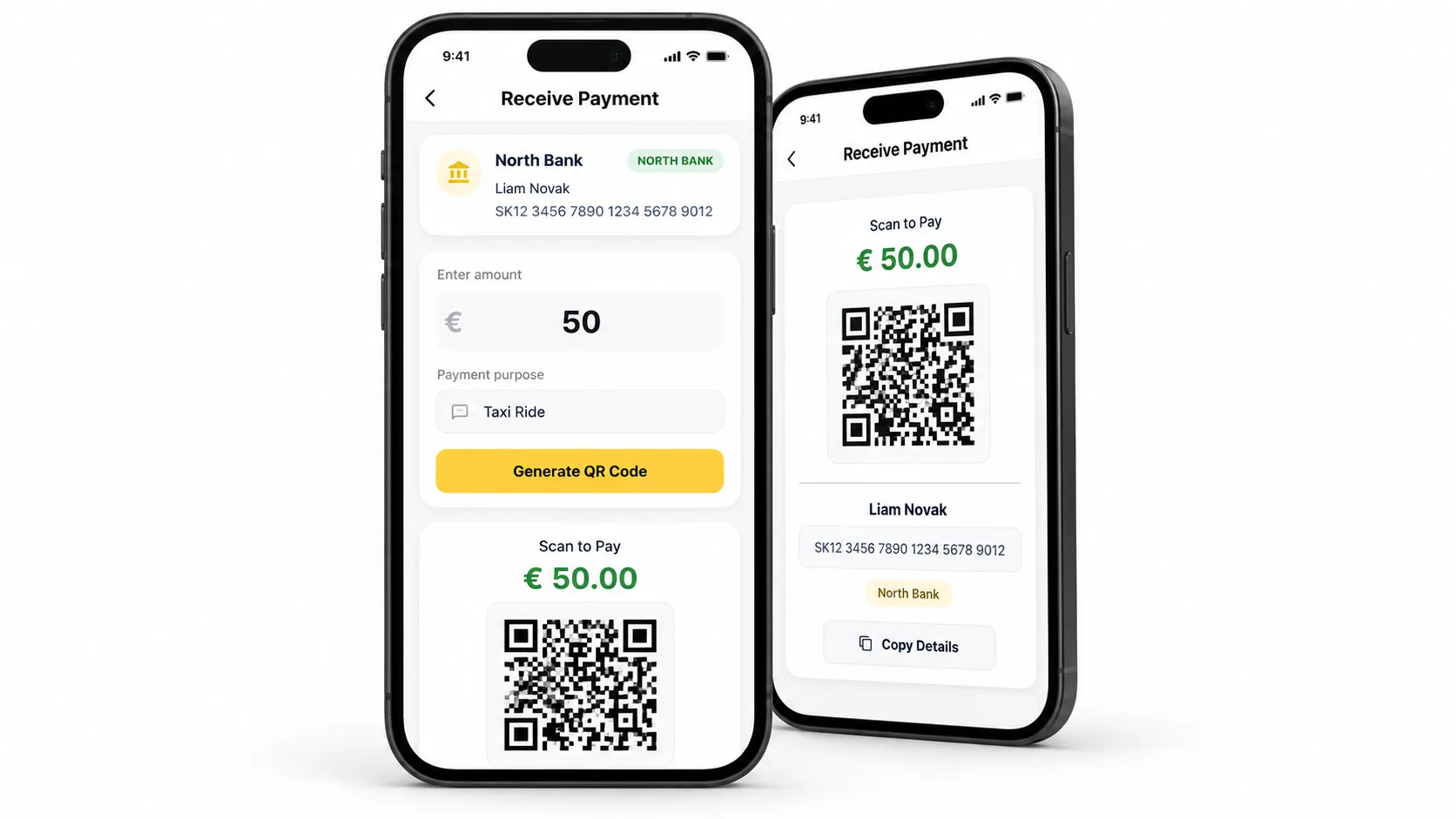
- QR code. The driver enters the amount, selects a saved payment profile, and shows the generated QR code to the passenger. This is the fastest option if the passenger's banking app supports scanning payment QR codes.
- Show details. If it is more convenient for the passenger to make a regular bank transfer, the driver can simply open the necessary data on the Driver Desk screen.
- Copy and send. The card or bank account number can be quickly copied and sent to the passenger via message. This is convenient if the passenger cannot scan the QR code or the transfer is not made immediately.
Instead of searching for details in different apps, the driver gets quick access to them in one place.
How QR code payment works
After completing the ride, the driver opens the "Accept Payments" feature, selects the desired payment profile, and enters the amount to be paid.
If necessary, you can add a payment purpose — for example, "Ride payment".
Driver Desk creates a payment QR code with the prepared transfer data and displays it on the driver's phone screen.
The passenger just needs to scan the code.
It is better to scan the QR code through a banking app
The most convenient scenario is to open the passenger's banking app and use the built-in QR scanner.
If the bank supports the format of the payment QR code used, the banking app reads the data contained in it and prepares the transfer.
The passenger does not have to manually rewrite the long bank account number and enter the amount. They verify the payment details and confirm the transfer in their banking app.
This is both faster and reduces the likelihood of errors when manually entering details.
What happens when scanning with a regular phone camera
You can try to scan the QR code with the standard camera of an iPhone or Android smartphone, but the result depends on the device, operating system, and installed applications.
The phone may recognize the payment data and prompt you to open a compatible app. If this does not happen, the contents of the QR code may be displayed as regular text data, which the passenger can use to make the transfer manually.
Therefore, for the most convenient payment, the driver should suggest to the passenger:
"Open your bank app and scan the QR code there."
You can do without a QR code altogether
Not every passenger finds it convenient to use a QR code. That is why the payment acceptance feature in Driver Desk is not limited to a single scenario.
The driver can show the saved details directly on their phone or quickly copy the card or bank account number and send it to the passenger via messenger or another convenient way.
The money goes directly to the driver
It is important to understand that Driver Desk is not a bank or a payment terminal and does not accept the passenger's money on its side.
The app helps the driver prepare and transmit the data necessary for payment. The bank transfer itself is made by the passenger directly to the bank account specified by the driver.
This means that the money does not pass through Driver Desk. The driver receives it directly to the selected bank account in accordance with the terms and processing speed of their bank and the passenger's bank.
How does the driver know that the passenger actually paid?
Since Driver Desk does not have access to the driver's bank account, the app cannot independently confirm that the transfer was actually received.
After the passenger confirms the transaction, the driver must verify the receipt of funds through their bank. This can be a PUSH notification from the banking app, an SMS from the bank, or transaction information directly in the banking app.
Multiple accounts — multiple payment profiles
In Driver Desk, you can store multiple payment profiles. For example, a driver may use one bank account for their main work, and another for specific types of transfers or another currency, if the corresponding scenario is supported by their bank.
Why does a driver need this feature if they can just send an IBAN?
They can. But the problem with a regular bank transfer is not the transfer itself, but the actions around it.
You need to find the details, share them with the passenger, ensure the number is copied correctly, report the amount, and then verify the payment. In regular work, these small actions are repeated over and over again.
Driver Desk turns saved payment details into a ready-to-use working tool.
No need for a separate payment terminal
For the direct bank transfer scenario itself, the driver does not need a physical card terminal. The passenger makes the transfer through their own banking app, and Driver Desk helps quickly prepare the data for it.
Accept payments more conveniently with Driver Desk
Save your payment details once and use them when a passenger wants to pay by bank transfer. Driver Desk is an app for drivers that helps make daily work easier.