How to Advertise Vehicles and Your Fleet: Driver Recruitment, Database, and Rental Applications
Every day a vehicle sits idle is a direct loss of revenue for a taxi fleet. Traditional driver recruitment through classifieds and chat groups takes up hours of manual work: reposting listings, answering repetitive phone calls, asking candidates to send photos of their documents in messengers, and keeping track of contacts in spreadsheets.
The Taxi Fleet Manager and Taxi Driver Desk ecosystem automates the entire recruitment funnel. You get your own digital vehicle showcase, smart referral links and printable A4 QR codes, an automatically populated driver database, and verified rental applications with full document packages.
1. How to Rent Out a Car for Taxi: Vehicle Advertising and Availability
Every vehicle in your taxi fleet has its own advertising card that can be configured under the "Advertisement" tab. Once filled out and saved, the vehicle automatically appears in your fleet's catalog inside the driver app.
You can manage the vehicle's availability using the "Available vehicle" toggle:
- Enabled: the vehicle is displayed at the top of the list with a green "Available" badge. This means it is free and ready for rental.
- Disabled: the vehicle stays in the catalog, but moves below the available cars and receives the "Temporarily unavailable" status. Drivers can still view its specifications, rental terms, and submit advance requests.
This way, even when a vehicle is already rented out, its advertising card continues to attract potential renters. You can collect requests in advance and find the next driver faster as soon as the car becomes free.
You only need to set up the advertising card and rental terms once. The information remains saved to the vehicle, and its availability can be changed at any time without re-entering the data.
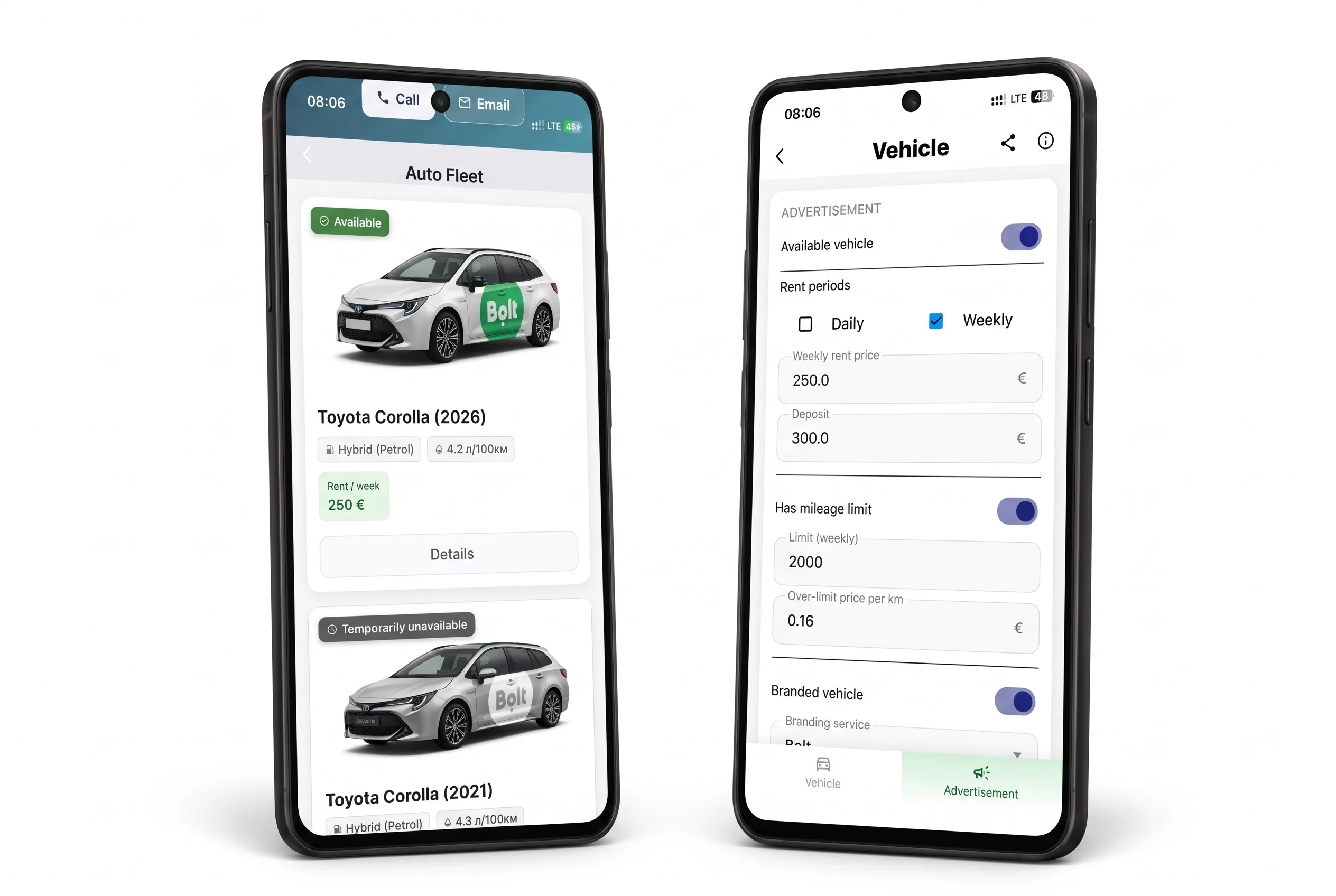
What is included in the vehicle advertisement card:
Drivers see transparent rental terms before submitting an application
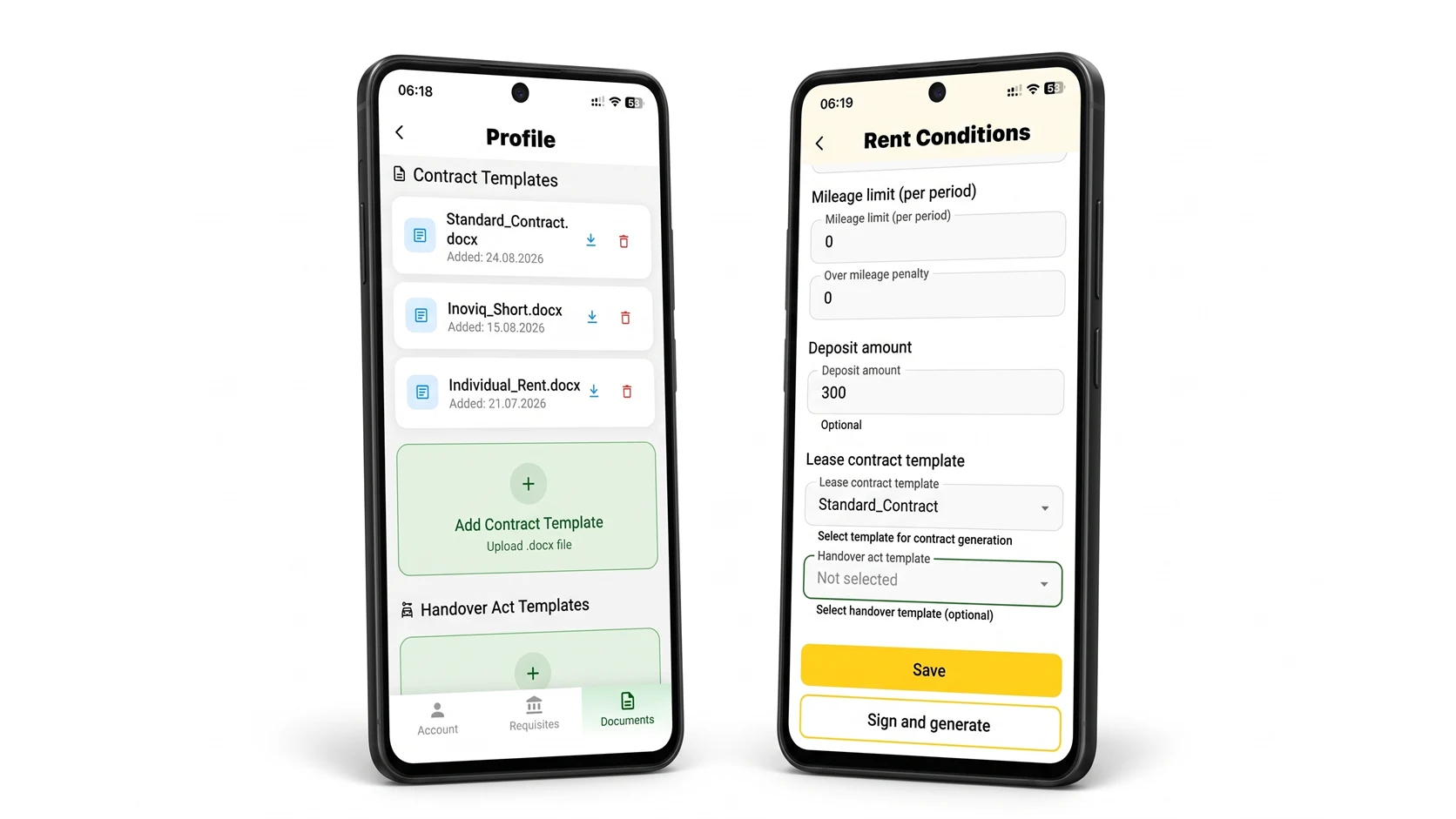
Rates & Deposit
- daily and/or weekly rental periods;
- rental price per day or per week;
- required security deposit amount.
Mileage Limits
- unlimited mileage or capped mileage;
- daily or weekly kilometer allowance;
- price per extra kilometer over the limit.
Specs & Branding
- fuel type (petrol, diesel, LPG, hybrid, electric);
- average fuel consumption per 100 km;
- ride-hailing branding (Bolt, Uber, Uklon, etc.).
Photos & Description
- real exterior and interior photos;
- vehicle features and equipment;
- fleet requirements and driver bonuses.
2. Automatic Vehicle Availability Management and Driver Notifications
Taxi Fleet Manager automatically updates the vehicle status upon handover and return, saving fleet managers from having to manually change car availability and notify drivers.
How the automation works:
- Vehicle is available. When the "Available vehicle" toggle is enabled, the car appears at the top of the catalog with the "Available" status. Drivers in your fleet who currently do not have an assigned car receive a push notification about the available vehicle.
- Vehicle is rented out. Once the vehicle is assigned to a driver, the system automatically turns off the "Available vehicle" toggle. The car receives the "Temporarily unavailable" status, while its advertising card remains in the catalog for viewing and advance requests.
- Vehicle is returned. When the rental ends and the driver is unassigned from the vehicle, the system automatically restores the "Available" status. The car moves back to the top of the list and becomes ready for new applications.
If needed, a manager can change the vehicle's availability manually at any time — for example, during scheduled maintenance or repairs.
Result: up-to-date information on available cars, automatic driver notifications, and less routine work for taxi fleet staff.
3. Taxi Driver Recruitment and Fleet Advertising: Links and QR Codes
Taxi Fleet Manager lets you attract new drivers using personalized links and QR codes. You can promote both your entire taxi fleet and individual vehicles available for rental.
Advertising the Entire Fleet
In "Drivers" → "Invite Driver" or in your fleet settings, you will find a general invite link and a branded QR code labeled "FLEET".
You can:
- Share the link on social media, messengers, your website, or classified ads.
- Download an A4 PDF poster with the QR code for printing and placing in a convenient location.
- Show drivers your entire catalog of fleet vehicles with live availability statuses and rental terms.
After following the link or scanning the QR code, the driver is automatically added to your fleet and gains access to your vehicle catalog.
Advertising a Specific Vehicle
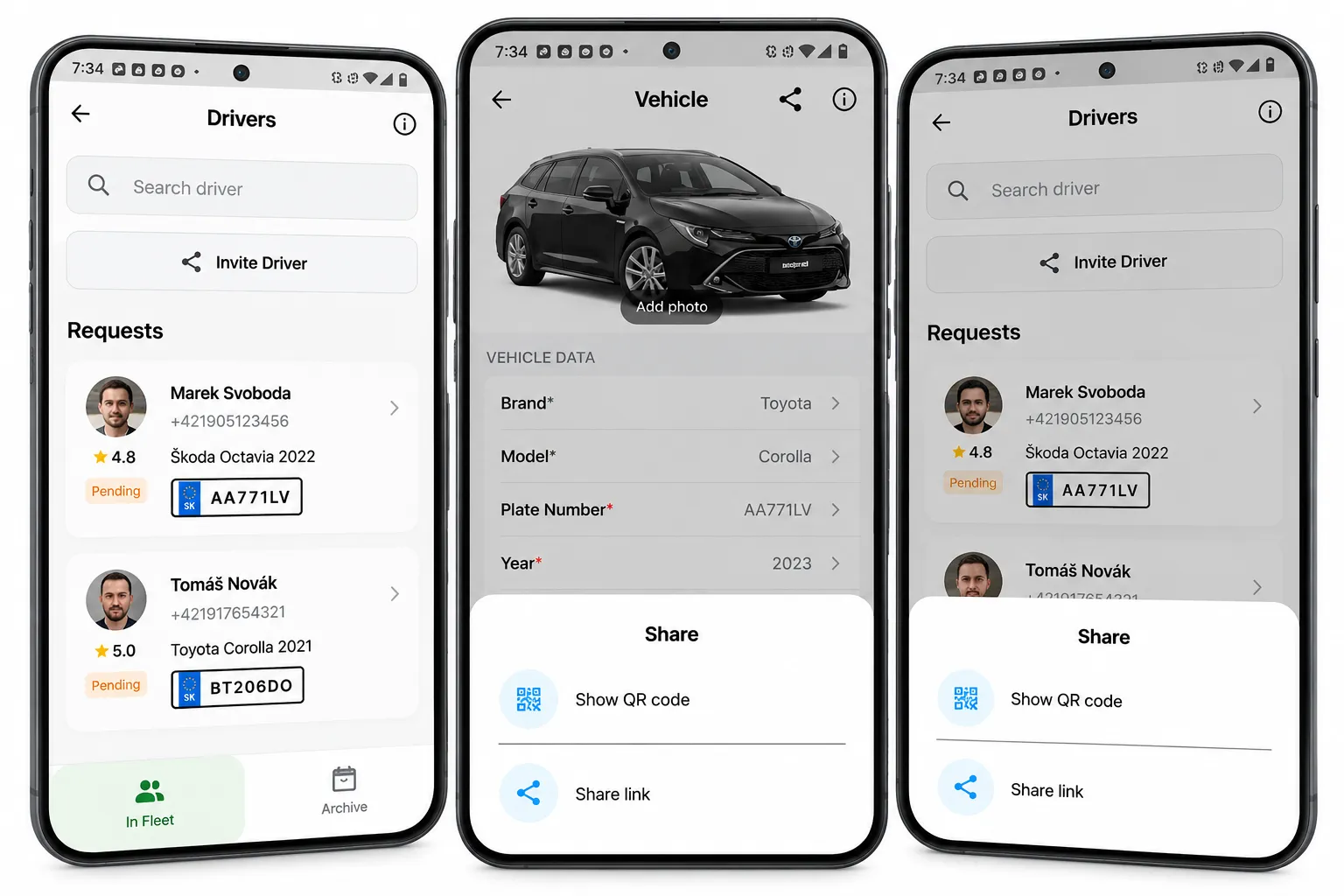
To promote an individual vehicle, open its card and tap the "Share" icon in the top-right corner. The system automatically generates a dedicated link and a QR code labeled "RENTAL".
You can:
- Send a ready-made listing with vehicle details, rental price, fuel consumption, and mileage.
- Download an A4 PDF poster with the QR code to place on the car window or other advertising spots.
- Direct the driver straight to the vehicle page, where they can review the rental conditions and submit an application.
When following a personal vehicle link or QR code, the driver is also automatically added to your fleet.
Benefit: links and QR codes help you simultaneously advertise vehicles, attract new drivers, and grow your taxi fleet database without manually adding each user.
4. How a Driver Connects to Your Fleet via Link or QR Code
Taxi Fleet Manager links and QR codes allow drivers to quickly join your taxi fleet through the Taxi Driver Desk app, available on Android, iOS, and the web. Even if the app is not installed yet, the system preserves the invitation details so the driver connects right after signing in.
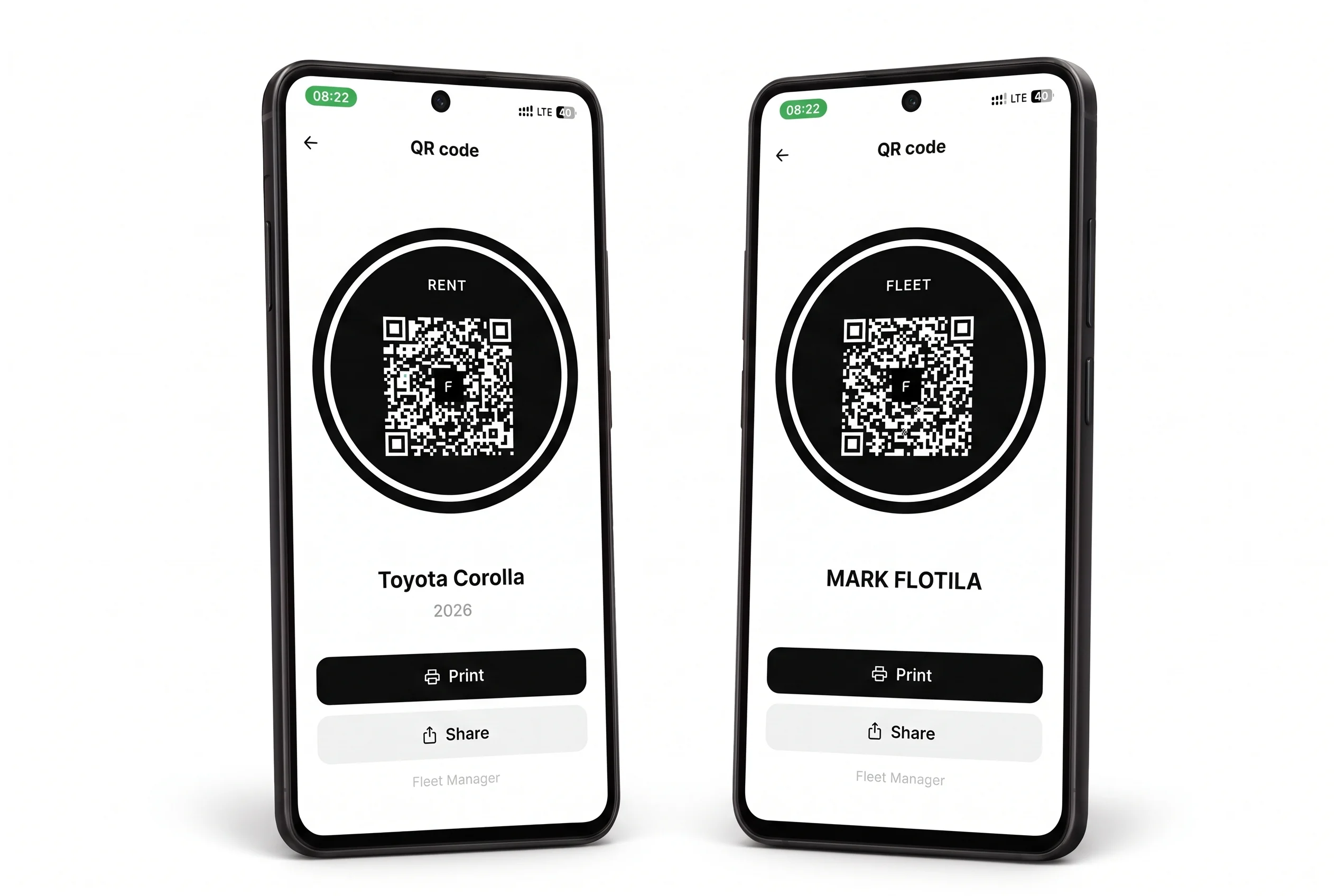
How the connection works:
Follow Link or Scan QR Code
The driver opens the link from an ad, social network, or messenger, or scans the QR code with their phone camera.
Open or Install the App
If Taxi Driver Desk is already installed, it opens automatically. Otherwise, the driver is directed to Google Play (Android) or the App Store (iOS) to install it, or uses the web version.
Sign In
The driver signs into an existing account or registers in Taxi Driver Desk. The system identifies the fleet or vehicle using the invitation code.
Automatic Connection
After signing in, the driver is automatically added to your fleet database without requiring manual confirmation from a manager.
What will the driver see after connecting?
The next screen depends on the invitation type:
- Fleet invitation. The driver sees your taxi fleet's vehicle catalog. Available cars with the "Available" status appear at the top of the list, followed by vehicles with the "Temporarily unavailable" status below. The driver can review vehicle specifications, rental conditions, and choose a suitable option.
- Specific vehicle invitation. The driver is taken straight to the selected car's card with its specifications and rental terms. They can review the offer and submit an application even if the vehicle is temporarily unavailable.
Benefit: regardless of how the driver was invited, they automatically join your taxi fleet, and the manager does not need to manually add them to the system or resend invitations.
5. How Your Taxi Fleet Driver Database Is Built and Managed
Taxi Fleet Manager helps you build and maintain your own driver database. Every driver who connects to your taxi fleet via a link or QR code is automatically added to the system.
All driver details, their current status, and collaboration history are available in the "Drivers" section.
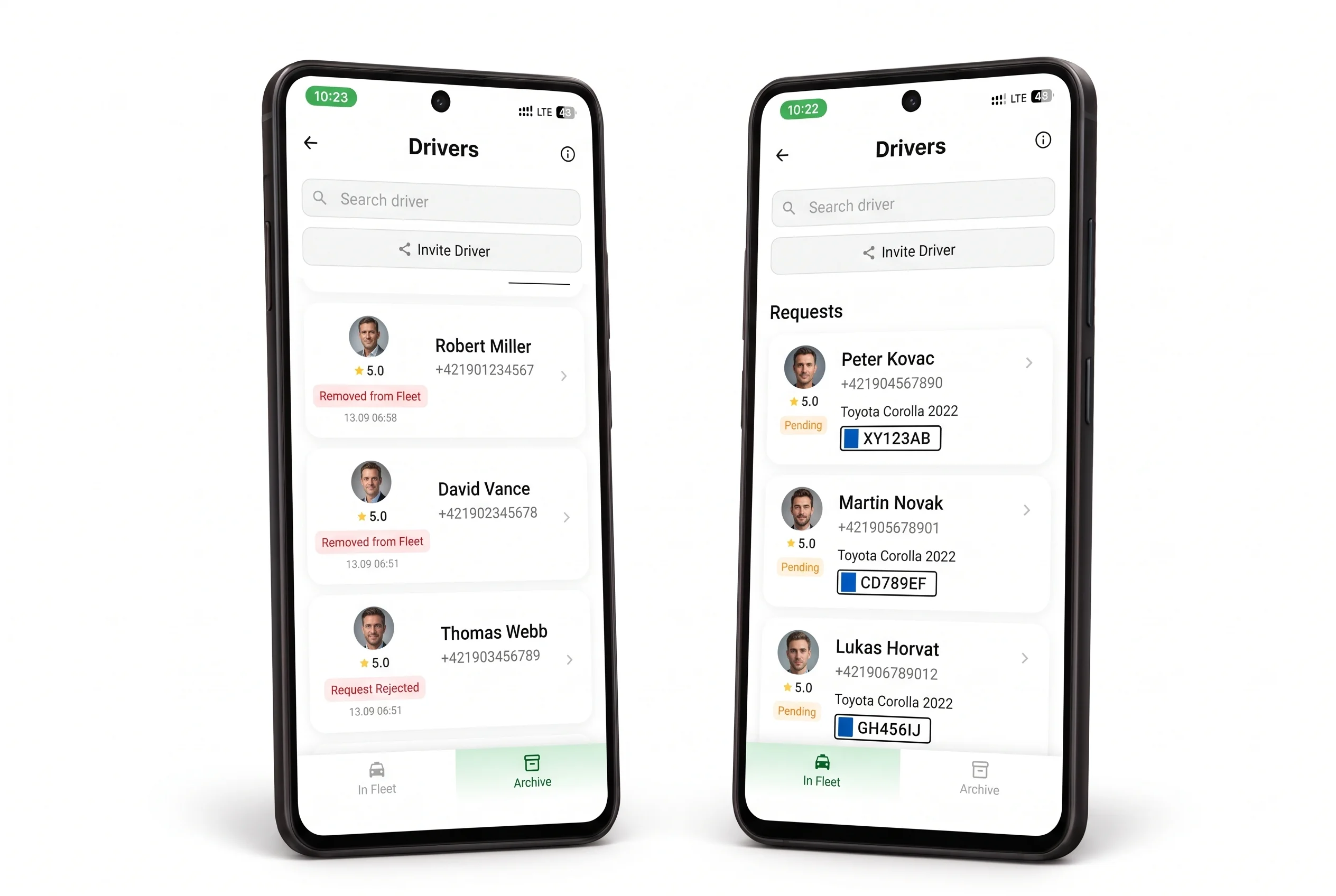
Displays all drivers connected to your taxi fleet, including active renters and those who are not currently renting a vehicle.
For convenience, drivers with the "No vehicle" status are automatically displayed at the top of the list.
This allows you to:
- Quickly find available drivers to whom you can offer a rental vehicle.
- Automatically notify drivers when available cars appear via push notifications.
- Manage your driver database without having to re-invite already connected users.
The archive stores the history of interactions with drivers who have left the fleet or whose applications were declined.
When a driver is moved to the archive, the system creates and preserves a copy of their profile at the moment of archiving, including:
- First and last name.
- Contact phone number.
- Photos of submitted documents.
- Date and reason for archiving.
The archived record preserves the information exactly as it was recorded when the collaboration ended. Subsequent changes made by the driver to their profile do not alter the contents of this record.
Benefit: all information about current and former drivers is organized in one place. Managers can quickly find available candidates, track collaboration history, and make informed decisions based on preserved records.
6. Car Rental Applications for Taxi and Driver Document Verification
Taxi Driver Desk simplifies submitting rental applications, while Taxi Fleet Manager helps managers quickly review candidates and make decisions without unnecessary phone calls and chat messages.
Before an application is sent, the system automatically checks whether the driver's profile is complete and the required documents are uploaded.
What information must the driver provide?
When a driver selects a vehicle and taps "Apply", the app verifies that the mandatory information is present:
- Personal details: first name, last name, and contact phone number.
- Driver's license: photos of the front and back sides, and expiration date.
- Identity document: photo of a passport or ID card, and residential address.
- Additional documents: permits and certificates required for working in a taxi in the respective country.
If any required details are missing, the app prompts the driver to complete their profile. An application can only be submitted once all required fields are filled out and documents are uploaded.
Once submitted, the application is automatically delivered to Taxi Fleet Manager, and the fleet owner or manager receives a push notification.
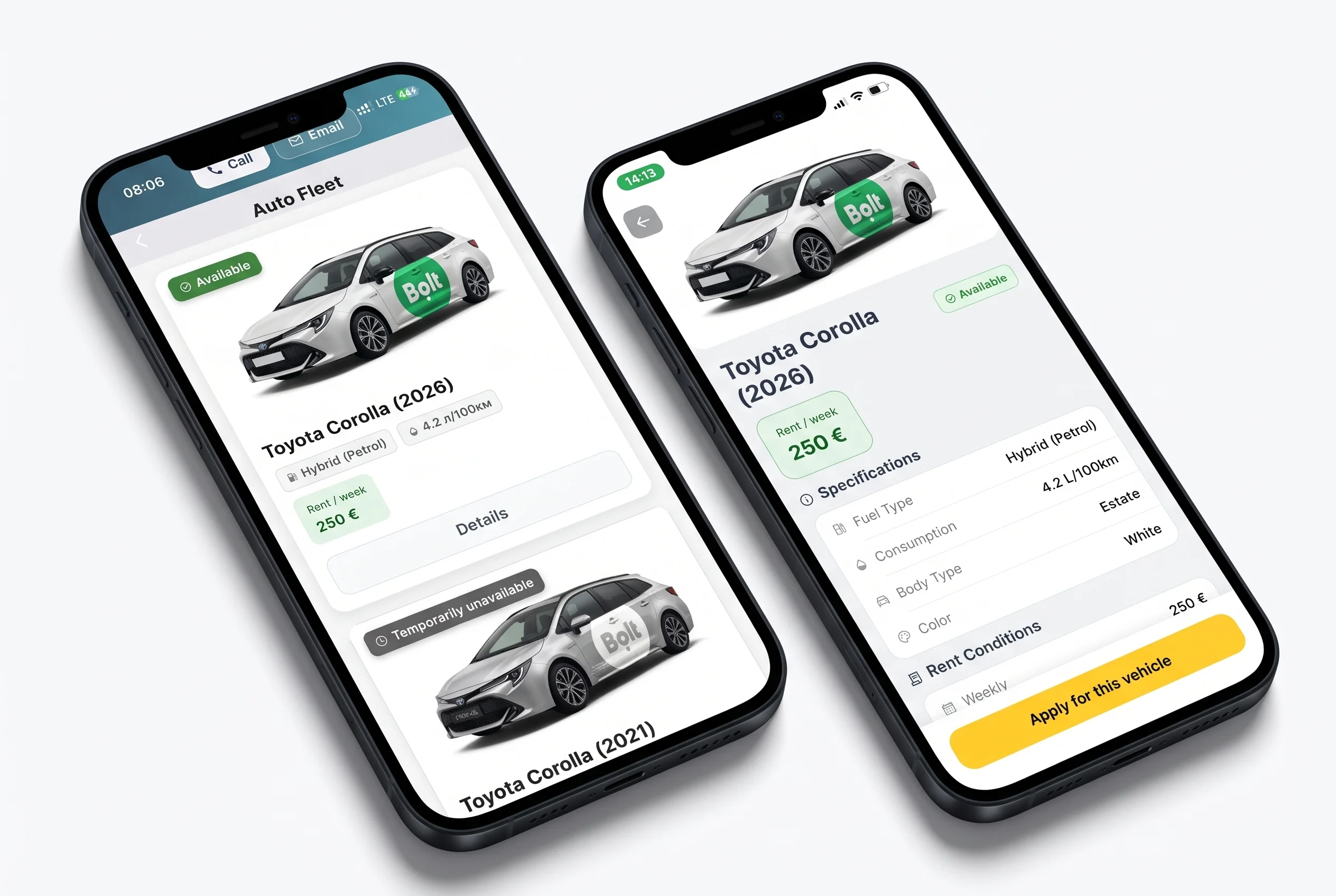
How does the manager process the application?
All new applications appear at the top of the "Drivers" section, under the "Requests" block, with the "Pending" status. Each application includes details about the vehicle the driver is interested in: make, model, and license plate number.
By opening the application, the manager can:
- Review the profile and documents. View personal details and photos of the driver's license, passport, and additional permits. Images can be expanded to full screen for detailed inspection.
- Evaluate the driver's reputation. Check their rating and reviews from other taxi fleets, including feedback on financial discipline, compliance with rental terms, and vehicle care.
- Make a decision on the application. Tap "Accept" to approve the candidate and proceed to setting up the rental, assigning the vehicle, and generating a contract with an electronic signature.
If the candidate is not a fit, the manager can tap "Reject". The application will move to the archive, while the driver remains in the fleet database and can apply for another vehicle.
This way, the manager receives all necessary information about the candidate before making a decision and can arrange vehicle handover without requesting documents via messengers.
7. Benefits of Automating Vehicle Advertising and Rentals
By combining vehicle advertising, driver recruitment, and application processing in a single system, Taxi Fleet Manager reduces the time spent finding renters and simplifies fleet operations.
Drivers can submit advance requests even for temporarily occupied vehicles. This helps you line up the next renters ahead of time and hand over returning cars faster.
When a vehicle becomes available, drivers connected to your fleet without an assigned car receive push notifications. Managers don't need to manually send offers or contact each candidate.
Personal links, QR codes, ad copy, and PDF posters let you promote vehicles on social media, in messengers, and offline without preparing marketing materials from scratch.
Before sending an application, the driver must provide contact details and upload mandatory documents. The manager receives everything needed for pre-screening the candidate.
Ratings and reviews from other taxi fleets provide valuable context on past cooperation with the driver and help you make well-informed decisions.
Contacts of active and potential renters, applications, and collaboration history are organized in one system. Managers can quickly find available drivers and review stored records without searching through chat histories.
To find renters effectively, combine promoting your entire taxi fleet with advertising individual vehicles:
- Place your general fleet link on your website, social media pages, and local Telegram or Viber driver communities. This helps you consistently attract new candidates.
- For vehicles that need to be rented out right away, use personal links and QR codes. They direct interested drivers straight to the vehicle card, where they can review the rental terms and submit an application.
Taxi Fleet Manager unifies the entire workflow: from attracting a driver and receiving an application to verifying documents, signing the contract, and handing over the vehicle.